YouTube Banner Guide 2026 - Size, Safe Zone & How to Make One in Canva
Your YouTube channel banner (also called YouTube channel art or cover photo) is one of the first things visitors see when they land on your channel page. A professional-looking banner builds trust, communicates your brand identity, and tells new viewers what your channel is about - all in a single glance. According to YouTube's official help documentation, the recommended YouTube banner size is 2560 x 1440 pixels.
But getting the size right is tricky. YouTube banners display differently on desktop, mobile, tablet, and TV. If you use the wrong YouTube banner dimensions, your channel art will be cropped, stretched, or blurry - making your channel look unprofessional. This comprehensive guide covers the exact YouTube banner size, safe zones for all devices, file requirements, YouTube banner aspect ratio, and expert design tips for 2026.
What Is the Best YouTube Banner Size?
YouTube recommends uploading your YouTube channel banner at 2560 x 1440 pixels. This is the maximum display size used on smart TVs and large screens. According to YouTube's channel customization guidelines, this dimension ensures your channel art displays at the highest quality across all devices without any upscaling artifacts.
The YouTube banner aspect ratio is 16:9, which is the same standard used by YouTube videos. Using this aspect ratio ensures your banner aligns visually with the rest of YouTube's interface. If you upload an image with a different aspect ratio, YouTube will either crop it or add letterboxing, neither of which looks professional.
The key challenge is that YouTube crops the banner differently on each device. Only the center portion is guaranteed to be visible everywhere. That center area is called the YouTube banner safe zone - and understanding it is critical to creating channel art that works across mobile, desktop, tablet, and TV simultaneously.
YouTube Banner Size Chart for All Devices
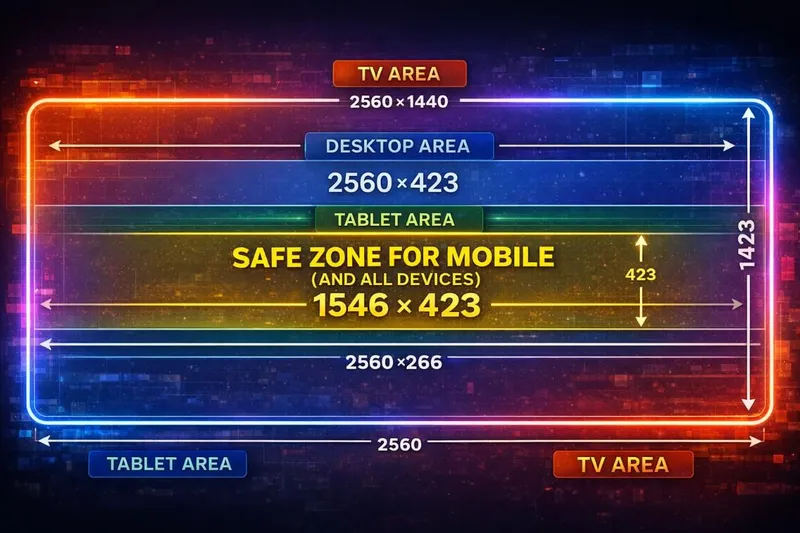
Here is exactly how much of your 2560 x 1440 YouTube channel art is visible on each device. Understanding these YouTube banner dimensions for different screens is essential for placing your content correctly:
| Device | Visible Area | Dimensions | Notes |
|---|---|---|---|
| TV (Smart TV, Gaming Console) | Full image | 2560 x 1440 px | Shows entire banner including top/bottom areas |
| Desktop (Windows, Mac, Chromebook) | Wide center strip | 2560 x 423 px | Full width but only center height strip |
| Tablet (iPad, Android Tablet) | Center area | 1855 x 423 px | Narrower than desktop, wider than mobile |
| Mobile (iPhone, Android Phone) | Narrow center strip | 1546 x 423 px | Smallest visible area - the safe zone |
This is why the YouTube safe zone dimensions of 1546 x 423 pixels are so critical. Any text, logo, or essential visual element must fit within this center area to be visible on all devices, including mobile phones where most YouTube browsing happens. Over 70% of YouTube traffic comes from mobile devices, so designing for the safe zone first is not optional - it is essential.
Understanding the YouTube Banner Safe Zone
The YouTube banner safe zone is the rectangular area in the center of your banner where YouTube guarantees visibility across all devices. Think of your 2560x1440 canvas as having three layered zones, each visible on progressively larger screens:
- Safe zone (1546 x 423 px) - Visible on ALL devices including mobile. This is where your channel name, logo, tagline, upload schedule, and social links must go. Consider this the "must-see" area of your banner.
- Desktop extension (2560 x 423 px) - Visible on desktop monitors and larger screens. You can place secondary design elements here like decorative graphics, additional branding, or subtle patterns that enhance the overall look without carrying critical information.
- Full canvas (2560 x 1440 px) - Only fully visible on TV screens. Use this area for background imagery, gradients, or color fills. Avoid placing any text or important content here since most viewers will never see these areas.
When designing for the safe zone, remember that your YouTube profile picture (channel icon) appears overlaid on the bottom-left of the banner on desktop. Avoid placing critical elements in that corner to prevent visual conflicts with your profile picture.
YouTube Banner File Requirements
Before uploading your YouTube channel banner, make sure it meets all of YouTube's file requirements. Uploading a file that does not meet these specifications will result in an error or poor image quality:
| Requirement | Specification | Details |
|---|---|---|
| Recommended size | 2560 x 1440 pixels | Best quality on all screens including TV |
| Minimum size | 2048 x 1152 pixels | YouTube rejects any image below this |
| Maximum file size | 6 MB | Compress PNG/JPG if over this limit |
| Accepted formats | JPG, PNG, BMP, GIF (non-animated) | Animated GIFs are not supported |
| Aspect ratio | 16:9 | Matches YouTube's standard video format |
| Color space | sRGB | Ensures consistent color across devices |
JPG vs PNG for YouTube banners: Use JPG when your banner is primarily photo-based - it offers excellent compression and keeps file sizes small while maintaining good visual quality. Use PNG when your banner has text overlays, logos, or graphic elements that need sharp, crisp edges without compression artifacts. If your PNG file exceeds 6 MB, use a free compression tool like TinyPNG to reduce the size without noticeable quality loss.
How to Design a YouTube Channel Banner (Step-by-Step)
Follow these detailed steps to create a professional YouTube channel banner that meets all the size, safe zone, and branding requirements. Whether you use Canva, Photoshop, or Figma, the process is the same:
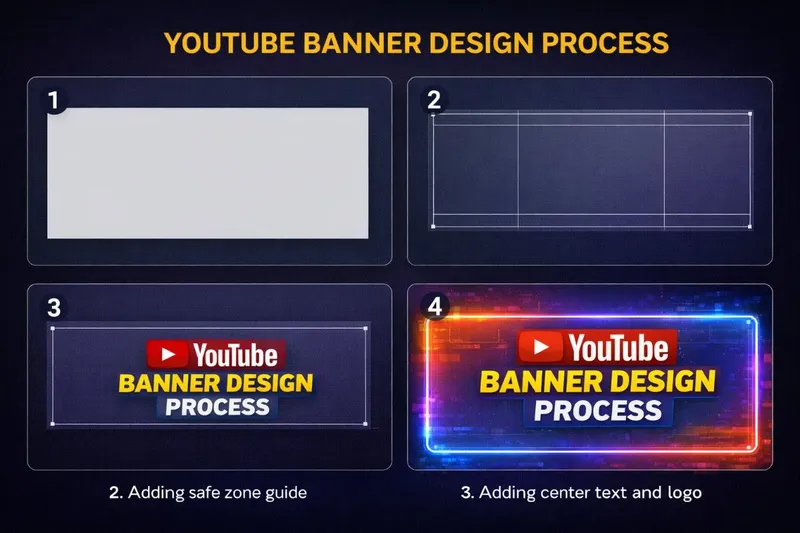
Step 1: Start with the Right Canvas Size (2560x1440)
Open your preferred design tool - Canva, Adobe Photoshop, or Figma - and create a new canvas at exactly 2560 x 1440 pixels. Most design tools have a "YouTube Channel Art" or "YouTube Banner" template that automatically sets this size for you. In Canva, search for "YouTube Channel Art" in the template library to find hundreds of pre-made YouTube banner templates that already use the correct dimensions. In Photoshop, go to File > New and enter 2560 for width and 1440 for height in pixels. In Figma, create a new frame with these exact dimensions.
Step 2: Mark the Safe Zone Boundaries
This is the most important step that many creators skip. Add guide lines at the safe zone boundaries (1546 x 423 pixels centered) so you can clearly see the area that will be visible on all devices. In Photoshop, go to View > New Guide Layout and enter your margins. In Canva, you can use the built-in safe zone overlay when using their YouTube banner template. In Figma, draw a rectangle at 1546 x 423 pixels, center it on the canvas, and use it as a reference layer. The safe zone starts approximately 507 pixels from the left edge and 509 pixels from the top edge of your 2560x1440 canvas.
Step 3: Add Your Core Branding Elements
Inside the safe zone, strategically place your most important elements for maximum brand impact and channel recognition:
- Your channel name or logo - Place prominently, usually center or slightly left
- A short tagline describing your content niche (e.g., "Tech Reviews & Tutorials")
- Upload schedule - Telling visitors when you upload (e.g., "New videos every Tuesday & Friday") builds anticipation and encourages subscriptions. According to YouTube's Creator Academy, channels that display their upload schedule on their banner see higher subscriber conversion rates.
- Social media handles (optional) - Include if you want cross-platform followers. Keep text size readable even on mobile.
Step 4: Extend the Design Outward
Once your safe zone content is finalized, fill the rest of the 2560x1440 canvas with supporting visuals that enhance your brand identity. Use background colors that match your brand palette, subtle gradients, geometric patterns, or relevant lifestyle/niche photography. These elements provide visual depth on desktop and TV views while not being critical for communication. Avoid placing any text or clickable calls-to-action outside the safe zone since they will be cropped on mobile. Consider using a slight vignette or fade effect at the edges so the cropping on different devices looks intentional rather than abrupt.
Step 5: Test on Multiple Devices Before Finalizing
Upload the banner to YouTube through YouTube Studio (Channel Customization > Branding > Banner Image) and use the built-in preview tool to check how it appears on phone, tablet, desktop, and TV. YouTube Studio shows a preview overlay of all four device crops before you confirm the upload. Pay special attention to whether your text is readable on the mobile crop and whether your profile picture overlaps with any important banner elements on desktop. If anything looks off, go back to your design tool, adjust positioning, and re-upload until it looks perfect on every screen size.
Why Your YouTube Banner Matters for Channel Branding
Your YouTube channel banner is not just decoration - it is a critical part of your channel's branding strategy. When a potential subscriber visits your channel page, your banner is the largest visual element they see. It immediately communicates whether your channel is professional, active, and worth subscribing to.
Effective channel branding creates a cohesive visual experience across your banner, profile picture, thumbnails, and video intros. When all of these elements share the same colors, fonts, and style, viewers develop brand consistency - they start recognizing your content in their feed before even reading the title. This is one of the most powerful growth strategies used by successful content creators on YouTube.
A well-designed banner also serves a practical purpose: it tells new visitors exactly what your channel offers and when to expect new content. Channels that include their upload schedule and content niche prominently in their banner convert casual visitors into subscribers at a significantly higher rate.
YouTube Banner Design Tips
Here are proven tips to make your YouTube channel art look professional and drive more subscribers:
- Keep text minimal - Your channel name and a short tagline is enough. Avoid long sentences that become unreadable on mobile. Stick to 10 words or fewer in your safe zone text.
- Use high-resolution images - Blurry banners make your channel look amateur. Always use source images that are at least 2560 pixels wide. Stock photo sites like Unsplash and Pexels offer free high-resolution images.
- Match your brand colors - Use the same 2-3 colors as your logo and thumbnails for visual consistency. This creates strong brand consistency across your entire channel page.
- Include your upload schedule - Telling visitors when you upload builds anticipation and encourages subscriptions. Phrases like "New videos every Tuesday" or "Weekly tech reviews" work well.
- Avoid too much detail - Remember that mobile users see a very narrow 1546px strip. Simple designs with bold elements work far better than complex illustrations with fine details.
- Update regularly - Refresh your banner for new seasons, subscriber milestones, content series launches, or rebrands. An outdated banner makes your channel look inactive.
- Use readable fonts - Stick to bold, sans-serif fonts like Montserrat, Bebas Neue, or Impact. Decorative or script fonts are difficult to read at small sizes on mobile.
- Check contrast - Ensure text stands out clearly against your background. Use dark text on light backgrounds or light text on dark backgrounds with sufficient contrast.
How to Download YouTube Channel Banners for Inspiration
One of the fastest ways to improve your own channel art is to study how successful content creators in your niche design their banners. You can download any YouTube channel's banner image in full HD resolution for competitive research and design inspiration:
- Go to the YouTube channel whose banner you want to study.
- Copy the channel URL from your browser address bar.
- Go to downloadythumbnail.online/youtube-banner-downloader.
- Paste the URL and click Get Banner.
- Download the full-resolution YouTube banner image to your device.
Save banners from channels you admire and analyze their layout, color palette, text placement, font choices, and overall style. Create a reference folder of 10-15 banners you love, then identify the common patterns. This research process is how professional designers develop their skills and create standout channel page designs.
Download Any YouTube Channel Banner in Full HD
Extract and save any channel's banner image instantly. Free YouTube banner downloader - no login needed.
Try the Banner DownloaderHow to Make a YouTube Banner in Canva (Free)
Canva is the best free YouTube banner maker that makes it easy to design professional YouTube channel art without any design experience. Here is the step-by-step process:
Step 1: Open Canva and Select Banner Size
Go to canva.com and click "Create a Design". Search for "YouTube Channel Art" and select it. Canva automatically creates a canvas at 2560 x 1440 pixels.
Step 2: Choose a Template or Start Blank
Canva offers hundreds of free YouTube banner templates organized by niche — gaming, music, tech, lifestyle, beauty, and more. Click any template to customize it, or start with a blank canvas for full creative control.
Step 3: Add Your Channel Name and Tagline
Click the Text tool and add your channel name. Choose a bold, clean font that reads well on mobile. Best font choices for YouTube banners include:
- Montserrat Bold - Clean, modern, highly readable
- Bebas Neue - Tall, condensed, eye-catching
- Oswald - Strong, professional, great for titles
- Poppins Bold - Rounded, friendly, modern feel
Position your channel name in the center (within the safe zone). Add your tagline below in a smaller font. Include your upload schedule: "New videos every Tuesday & Friday."
Step 4: Customize Colors and Background
Use 2-3 brand colors matching your thumbnails and logo. For backgrounds, Canva offers solid colors, gradients (search "gradient" in Elements), photo backgrounds with dark overlays, and subtle patterns.
Step 5: Download and Upload to YouTube
Click Share > Download > PNG (recommended for sharp text). Ensure the file is under 6 MB. Upload to YouTube Studio under Channel Customization > Branding > Banner Image. Preview on all devices before confirming.
Common YouTube Banner Mistakes to Avoid
- Text outside the safe zone - Your channel name, links, or upload schedule will be completely cut off on mobile devices.
- Image too small - Banners below 2048 x 1152 pixels will be rejected. Even at minimum size, the image may appear blurry.
- Too busy - Cluttered designs compete for attention. The best banners communicate their message in under 2 seconds.
- No brand consistency - Your banner should match your thumbnail style, channel logo colors, and video intro branding.
- Never updating - Refresh your banner at least quarterly or when you hit major milestones.
- File too large - Keep under 6 MB. Use TinyPNG or Squoosh to compress.
- Ignoring the profile picture overlap - On desktop, your profile picture covers the bottom-left of your banner.