YouTube Dimensions Guide 2026 - Shorts, Intro & Video Size Specs
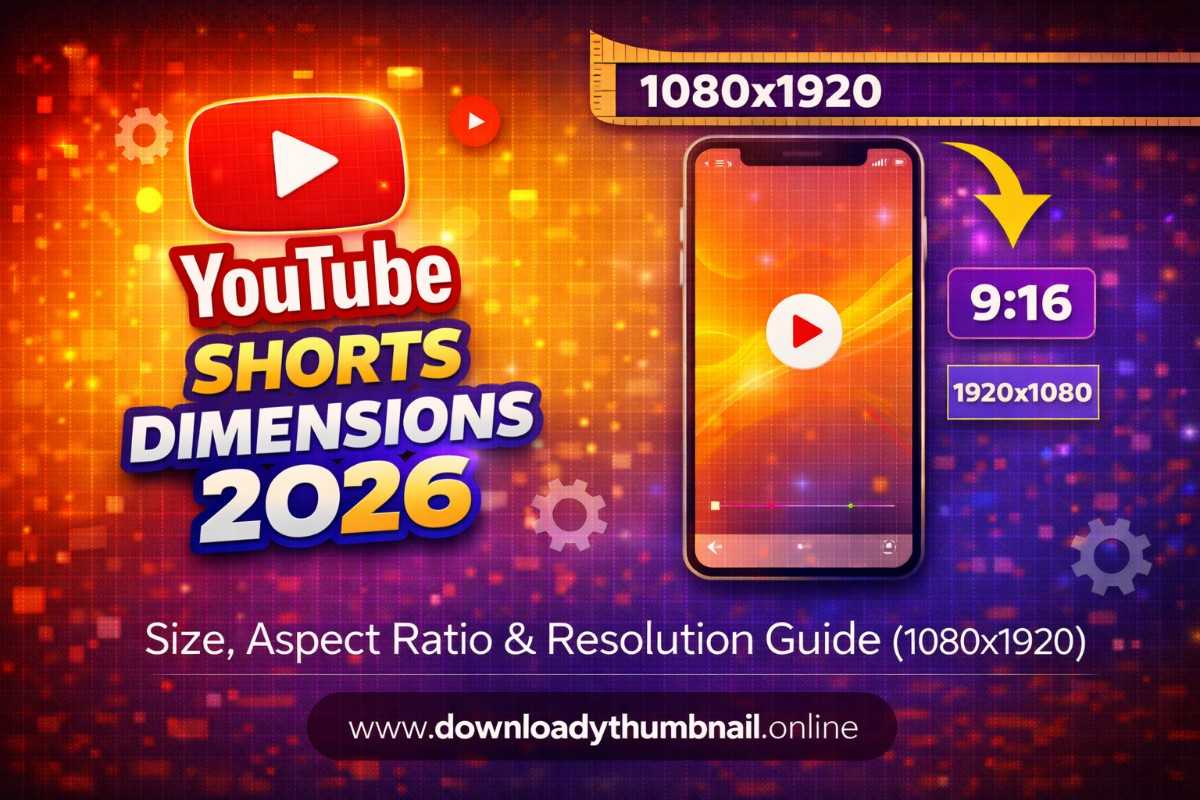
YouTube Shorts has exploded into one of the most powerful growth tools on the platform. With over 70 billion daily views globally, Shorts gives creators massive reach potential. But many creators sabotage their Shorts by uploading them in the wrong dimensions. A video that does not fill the screen properly, has critical text cropped off by UI elements, or looks blurry on playback loses viewer attention immediately.
The correct YouTube Shorts dimensions are 1080 x 1920 pixels at a 9:16 aspect ratio. This is a vertical video format - the exact opposite of standard YouTube videos. This guide covers everything you need to know about Shorts sizing, safe zones, recording tips, thumbnail specifications, and common mistakes to avoid in 2026.
What Are the YouTube Shorts Dimensions?
YouTube Shorts are vertical videos designed for mobile-first viewing. The recommended resolution is 1080 x 1920 pixels, which is Full HD in a vertical orientation. This matches the native screen resolution of most modern smartphones, meaning your Short fills the entire screen without any black bars or awkward cropping.
The 9:16 aspect ratio is the standard for all vertical short-form video platforms including TikTok, Instagram Reels, and Facebook Reels. If you already create content for those platforms, your videos will work on YouTube Shorts without any re-editing.
YouTube Shorts vs Standard Video Dimensions
Understanding the key differences between Shorts and regular YouTube video dimensions helps you avoid using the wrong settings when editing and exporting:
| Specification | YouTube Shorts | Standard YouTube Video |
|---|---|---|
| Resolution | 1080 x 1920 px | 1920 x 1080 px |
| Aspect ratio | 9:16 (vertical) | 16:9 (horizontal) |
| Orientation | Portrait (tall) | Landscape (wide) |
| Max duration | 3 minutes | 12 hours |
| Thumbnail size | 1080 x 1920 px (9:16) | 1280 x 720 px (16:9) |
| Primary viewing device | Mobile (full screen) | All devices |
| Player behavior | Vertical swipe feed | Embedded video player |
YouTube Shorts Safe Zone - Where to Place Text and Faces
This is the part most creators get wrong. Even though your Short is 1080 x 1920 pixels, not all of that space is equally visible. YouTube overlays UI elements on top of your video, including the channel name, title, like/comment/share buttons, and a music/sound attribution bar. If you place important content behind these overlays, it gets covered.
The YouTube Shorts safe zone is the central area of your video where content is guaranteed to be visible without being obscured by interface elements:
- Top safe zone - Keep text and key visuals at least 180 pixels from the top edge. The status bar and YouTube's navigation elements occupy this space.
- Bottom safe zone - Keep text and faces at least 390 pixels from the bottom edge. This is where the title, channel name, description snippet, and music attribution appear.
- Right safe zone - Keep content at least 100 pixels from the right edge. The like, comment, share, and remix buttons stack along the right side.
- Left safe zone - The left side is mostly clear, but keep a 40-pixel margin for comfortable viewing.
The effective visible area where your content will never be obscured is roughly 940 x 1350 pixels centered within the 1080x1920 frame. Place all captions, faces, key text, and calls-to-action within this zone.

How to Record YouTube Shorts at the Correct Dimensions
Recording on Your Phone
The simplest way to create Shorts at the perfect dimensions is to record directly on your smartphone held in portrait (vertical) orientation. Modern phones record at 1080p or higher by default, which automatically produces a 1080x1920 video. Before recording, check your camera app settings to confirm the resolution is set to 1080p or 4K.
- iPhone - Go to Settings, then Camera, then Record Video. Select 1080p HD at 30fps or 60fps. Record while holding the phone vertically.
- Android - Open Camera app, tap Settings (gear icon), find Video Resolution, and select 1080p or higher. Record vertically.
- YouTube app camera - Open YouTube, tap the + (Create) button, and select "Create a Short." This records directly at Shorts dimensions with built-in editing tools.
Recording on Desktop / Camera
If you use a DSLR, mirrorless camera, or webcam, you will typically record in horizontal 16:9 format. To convert this footage into a vertical Short:
- Import the footage into your editing software (Premiere Pro, Final Cut Pro, DaVinci Resolve, CapCut).
- Create a new project or sequence with the dimensions set to 1080 x 1920 pixels (9:16).
- Place your horizontal clip on the timeline. Scale and position it so the most important part of the frame (your face, product, action) fills the vertical canvas.
- Export at 1080x1920 resolution in MP4 format.
YouTube Shorts Thumbnail Dimensions
YouTube now allows custom thumbnails for Shorts, which is a huge advantage for standing out in the Shorts shelf and search results. The recommended Shorts thumbnail size is:
| Specification | Value |
|---|---|
| Recommended size | 1080 x 1920 pixels |
| Aspect ratio | 9:16 (vertical) |
| File formats | JPG, PNG, GIF (non-animated) |
| Max file size | 2 MB |
Unlike regular YouTube video thumbnails which are 1280x720 horizontal images, Shorts thumbnails match the vertical 9:16 format. Design your Shorts thumbnail with bold text, a clear subject, and high contrast. Remember that Shorts thumbnails appear at very small sizes in the Shorts shelf, so keep designs simple. For tips on designing thumbnails that get clicks, check our YouTube thumbnail design tips guide.
You can also download Shorts thumbnails from any public video for design inspiration. Use our free YouTube Shorts thumbnail downloader guide to learn how.
Editing Software Settings for YouTube Shorts
Setting up the correct canvas size in your editing tool is critical. Here are the exact settings for popular editors:
| Software | How to Set 9:16 Canvas |
|---|---|
| Adobe Premiere Pro | New Sequence > Settings > Frame Size: 1080 x 1920, Pixel Aspect Ratio: Square Pixels |
| Final Cut Pro | File > New Project > Custom: 1080 x 1920 |
| DaVinci Resolve | Project Settings > Timeline Resolution: Custom 1080 x 1920 |
| CapCut (Desktop) | New Project > Canvas Ratio: 9:16 (auto sets to 1080x1920) |
| Canva | Create Design > Custom Size: 1080 x 1920 px, or search "YouTube Short" |
| iMovie | Does not natively support 9:16. Crop in post or use a workaround with vertical footage. |
Common YouTube Shorts Dimension Mistakes
- Uploading horizontal video as a Short - A 16:9 landscape video with #Shorts in the title still shows as a tiny strip in the vertical feed with huge black bars above and below. Always convert to 9:16 before uploading.
- Text behind UI overlays - Placing captions or calls-to-action at the very bottom of the frame means they get covered by the video title and channel name. Keep text within the safe zone.
- Low resolution uploads - Recording at 720p or lower results in visibly blurry Shorts, especially on larger phone screens. Always shoot at 1080p minimum.
- Square (1:1) format - Square videos technically play as Shorts but do not fill the screen, leaving black bars at top and bottom. They feel less immersive and get lower engagement.
- Exceeding 3-minute limit - Videos longer than 3 minutes will not be classified as Shorts. YouTube will treat them as regular uploads displayed in the standard horizontal player.
- Ignoring the right margin - The like/comment/share buttons cover the right side. Text or important visuals along the right edge get hidden.
Download Any YouTube Shorts Thumbnail in HD
Extract and save any Short's thumbnail image instantly. Free YouTube thumbnail downloader - no login needed.
Try the Thumbnail DownloaderYouTube Intro Size - Dimensions & Length Guide
A YouTube intro is the short branded clip that plays at the beginning of your video. The correct YouTube intro size is 1920 x 1080 pixels (1080p) at a 16:9 aspect ratio, matching the dimensions of your main video content. If you record in 4K, your intro should be 3840x2160.
| Your Video Resolution | Intro Dimensions | Aspect Ratio |
|---|---|---|
| 1080p (Full HD) | 1920 x 1080 px | 16:9 |
| 1440p (QHD) | 2560 x 1440 px | 16:9 |
| 4K (UHD) | 3840 x 2160 px | 16:9 |
| YouTube Shorts | 1080 x 1920 px | 9:16 |
How Long Should a YouTube Intro Be?
The ideal YouTube intro length is 3 to 5 seconds. YouTube's own Creator Academy recommends keeping branded intros under 5 seconds. Here is how intro length affects viewer retention:
| Intro Length | Impact on Retention | Recommendation |
|---|---|---|
| 0-2 seconds | Minimal drop-off | Best option - quick logo flash |
| 3-5 seconds | Slight drop-off, acceptable | Good - short animation with sound |
| 5-10 seconds | Noticeable audience loss | Too long for most content |
| 10+ seconds | Significant viewer drop-off | Avoid - damages retention |
The Hook-Intro-Content Structure
The most effective video structure used by top creators does not start with the intro at all. Instead, it follows the Hook-Intro-Content pattern:
- Hook (5-15 seconds) - Start with the most interesting moment from your video. This "cold open" grabs attention and convinces viewers to keep watching.
- Branded intro (3-5 seconds) - After the hook captures attention, play your short branded intro animation. Viewers are already invested.
- Main content - Deliver on the promise of your hook and maintain energy throughout.
Best Free YouTube Intro Makers
| Tool | Price | Best For | Output Quality |
|---|---|---|---|
| Canva | Free | Beginners, simple animated intros | 1080p MP4 |
| Panzoid | Free | 3D animated intros, gaming channels | Up to 4K |
| CapCut | Free | Mobile and desktop, templates | 1080p/4K |
| DaVinci Resolve Fusion | Free | Advanced motion graphics | Up to 8K |
| Adobe After Effects | $23/mo | Professional custom animations | Up to 8K |